> ## Documentation Index
> Fetch the complete documentation index at: https://docs.pocketflows.com/llms.txt
> Use this file to discover all available pages before exploring further.
# Ads
> Learn how to integrate analytics tracking for ad attribution
## Overview
Integrating analytics tracking involves three parts:
1. **Install tracking script & Verify** - Create an analytics embed, add the
tracking script to your site, and verify it's working
2. **Identify Users** - Link the anonymous\_id (generated by the script) to known
users in your system with the customer\_id from Pocketflows
3. **Send Conversions** - Report conversion events when users complete purchases
(same set up as triggers)
## Prerequisites
* A valid `project_id` and `secret_key` for API authentication
* An existing `business_id` for the business you want to track
## Authentication
All API requests use Basic HTTP authentication. Pass your `project_id` as the
username and `secret_key` as the password.
```
Authorization: Basic base64(project_id:secret_key)
Content-Type: application/json
```
***
## Install tracking script
An analytics embed represents a tracking instance for a specific business
website. It generates the unique script URL you'll install on your site and
stores the `website_url` for installation verification.
### Step 1: Create an Analytics Embed
#### Request
```shell theme={null}
POST /businesses/{business_id}/analytics_embeds
Headers
{
"Authorization": "Basic base64encode(project_id:secret_key)",
"Content-Type": "application/json"
}
Body
{
"website_url": "https://example.com"
}
```
### Parameters
`website_url` - The URL where the tracking script will be installed
### Response
```json theme={null}
{
"id": "ae_WWWWXXXXXYYYYYYZZZZZ",
"business": "biz_abc123",
"created_at": "2025-01-09T12:00:00Z",
"expires_at": "2125-01-09T12:00:00Z",
"website_url": "https://example.com",
"last_script_request_at": null,
"last_event_at": null
}
```
Create **one analytics embed per business**. You do not need a separate embed
for each page or subdomain. If you ever need to rotate an embed for
operational reasons, simply create a new one and replace the script tag on
your site.
### Step 2: Install the Tracking Script
Add this script tag to the `` section of your website:
```html theme={null}
```
**Cross-domain tracking:** If a user's journey spans multiple domains — for
example, a business site at `example.com` that links to a booking flow on
`bookings.example-app.com` — add the `data-cross-domains` attribute with a
space-separated list of domains:
```html theme={null}
```
This ensures the `anonymous_id` is carried across domains so Pocketflows tracks
the entire session as one user journey. For ad platforms like Google Ads,
Pocketflows automatically handles cross-domain linking behind the scenes using
the recommended linker approach, so conversions are correctly attributed even
when the user navigates between domains.
### Step 3: Verify Installation
#### Request
```shell theme={null}
POST https://api.pocketflows.com/analytics_embeds/{embed_id}/check
```
#### How It Works
When you call check, we:
1. Fetch the website\_url you provided
2. Scan the HTML for the expected script tag
3. Update last\_script\_request\_at if found
4. Update last\_event\_at with the most recent attribution event (if any)
### Response
```json theme={null}
{
"id": "ae_WWWWXXXXXYYYYYYZZZZZ",
"business": "biz_abc123",
"website_url": "https://example.com",
"last_script_request_at": "2025-01-09T14:30:00Z",
"last_event_at": null
}
```
***
## Part 2: Identify Users
Link the `anonymous_id` (generated by the tracking script) to a Pocketflows
`customer_id` after the user signs up and is synced to Pocketflows.
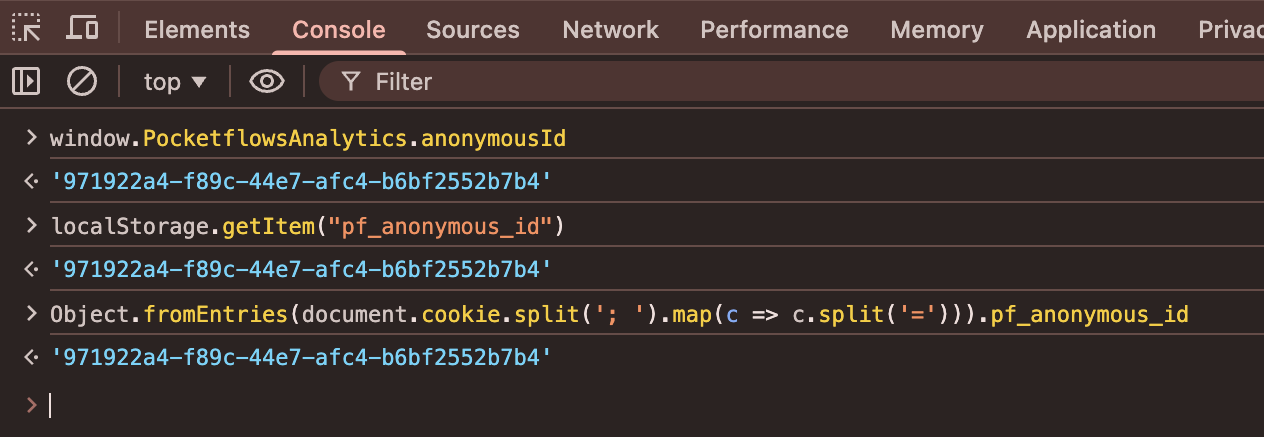
### Accessing the Anonymous ID
Once the tracking script is installed, you can access the `anonymous_id` from
the browser:
```javascript theme={null}
// window
window.PocketflowsAnalytics.anonymousId;
// localStorage
localStorage.getItem("pf_anonymous_id");
// cookie
Object.fromEntries(document.cookie.split("; ").map((c) => c.split("=")))
.pf_anonymous_id;
```
The script stores this ID in localStorage and cookies as `pf_anonymous_id`, so
it persists across sessions.
 ### Identifying Customers
After a user signs up and is synced to Pocketflows, call `identify` to link
their anonymous session to their customer record.
**Using the Pocketflows customer ID:**
```javascript theme={null}
window.PocketflowsAnalytics.track("identify", {
customer_id: "<%= @customer.public_id %>",
});
```
**Using your external ID:**
```javascript theme={null}
window.PocketflowsAnalytics.track("identify", {
customer_external_id: "<%= @customer.external_id %>",
});
```
When using `customer_external_id`, we'll automatically retry a few times to
account for any delay in syncing the customer to Pocketflows. Make sure the
customer is synced within **4 hours** of the identify call — Pocketflows will
stop retrying after that window, and ad platforms like Google Ads require
conversion data promptly to attribute it correctly.
Behind the scenes, Pocketflows:
1. Links all previous events from this anonymous\_id to the customer
2. Associates all future events from this anonymous\_id with the customer
***
## Part 3: Send Conversions
Send purchase events the same way you
[send trigger events](/api-reference/events/track-an-event-occuring-within-a-business#track-an-event-occuring-within-a-business)
for emails and SMS. When you
[create the project-level event](/api-reference/project-defined-events/create-a-project-defined-event),
you can explicitly define the `purchase_amount_path` based on the event `data`.
**Coming soon:** A dashboard setting to tag which events should be considered
purchase events for attribution.
### How Attribution Works
When a purchase event is received, Pocketflows automatically:
1. Looks up the customer and finds their last touch point based on tracked UTM
parameters (e.g. `ad_campaign_id`, `campaign_id`, `trigger_id`,
`email_blast_id`).
2. Attributes the conversion to the marketing source that drove it using
last-touch attribution.
3. Sends the conversion event to the ad platform (e.g. Google Ads) on your
behalf, so the platform can optimize bidding and reporting in real time.
### Identifying Customers
After a user signs up and is synced to Pocketflows, call `identify` to link
their anonymous session to their customer record.
**Using the Pocketflows customer ID:**
```javascript theme={null}
window.PocketflowsAnalytics.track("identify", {
customer_id: "<%= @customer.public_id %>",
});
```
**Using your external ID:**
```javascript theme={null}
window.PocketflowsAnalytics.track("identify", {
customer_external_id: "<%= @customer.external_id %>",
});
```
When using `customer_external_id`, we'll automatically retry a few times to
account for any delay in syncing the customer to Pocketflows. Make sure the
customer is synced within **4 hours** of the identify call — Pocketflows will
stop retrying after that window, and ad platforms like Google Ads require
conversion data promptly to attribute it correctly.
Behind the scenes, Pocketflows:
1. Links all previous events from this anonymous\_id to the customer
2. Associates all future events from this anonymous\_id with the customer
***
## Part 3: Send Conversions
Send purchase events the same way you
[send trigger events](/api-reference/events/track-an-event-occuring-within-a-business#track-an-event-occuring-within-a-business)
for emails and SMS. When you
[create the project-level event](/api-reference/project-defined-events/create-a-project-defined-event),
you can explicitly define the `purchase_amount_path` based on the event `data`.
**Coming soon:** A dashboard setting to tag which events should be considered
purchase events for attribution.
### How Attribution Works
When a purchase event is received, Pocketflows automatically:
1. Looks up the customer and finds their last touch point based on tracked UTM
parameters (e.g. `ad_campaign_id`, `campaign_id`, `trigger_id`,
`email_blast_id`).
2. Attributes the conversion to the marketing source that drove it using
last-touch attribution.
3. Sends the conversion event to the ad platform (e.g. Google Ads) on your
behalf, so the platform can optimize bidding and reporting in real time.